
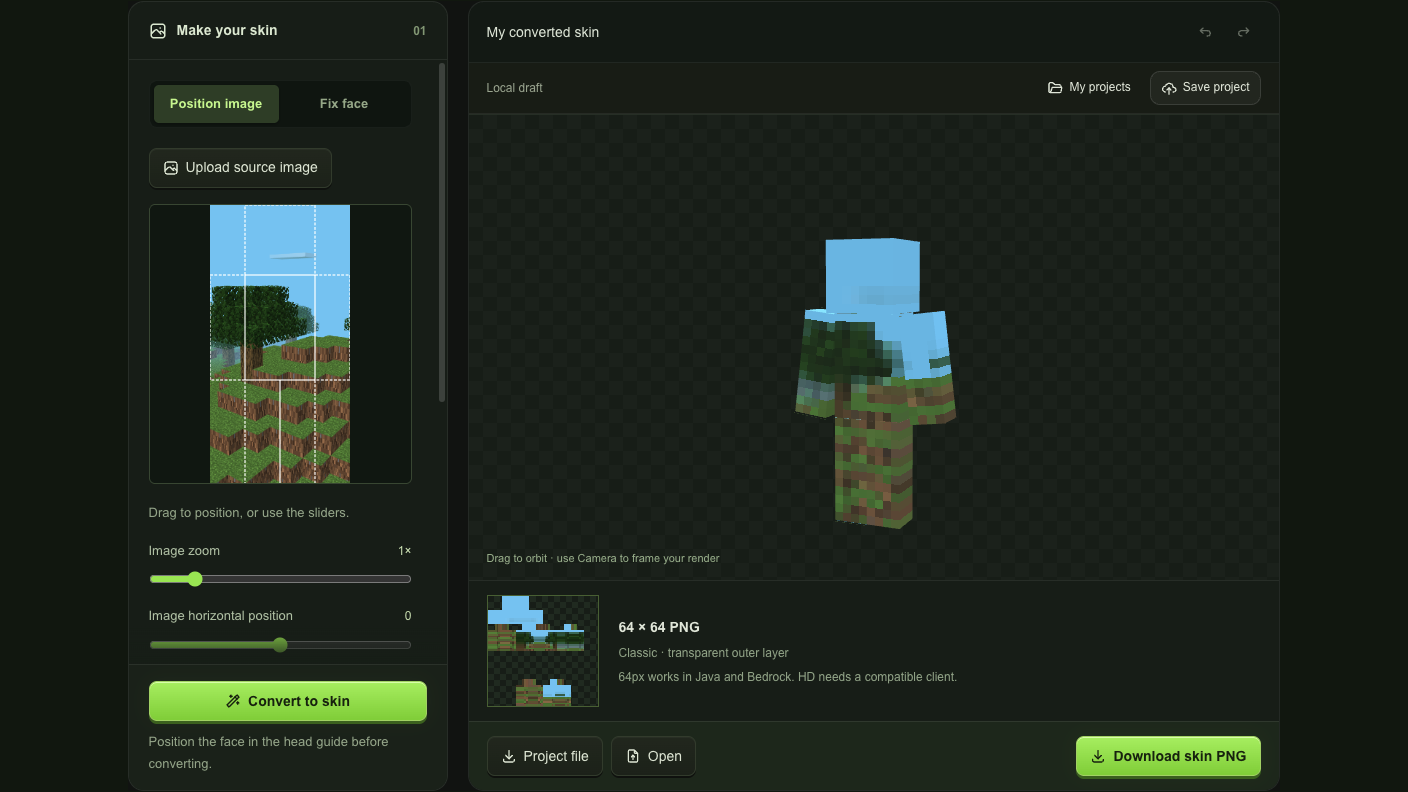
Image to Minecraft skin converter with 3D preview

Turn a favorite picture into a skin you can inspect and refine. The image to Minecraft skin tool maps your positioned source onto a character, with a 3D preview and face editing before you download the PNG.

Make your skin01

Drag to position, or use the sliders.

Preview camera
Local draft
Loading character…Drag to orbit · use Camera to frame your render
64 × 64 PNG

Classic · transparent outer layer

64px works in Java and Bedrock. HD needs a compatible client.

See how your picture becomes a skin

A picture’s colors and shapes look different once wrapped around a character. Compare the source with its mapped result, then use the image to Minecraft skin preview to decide which details belong on the face, torso and limbs.

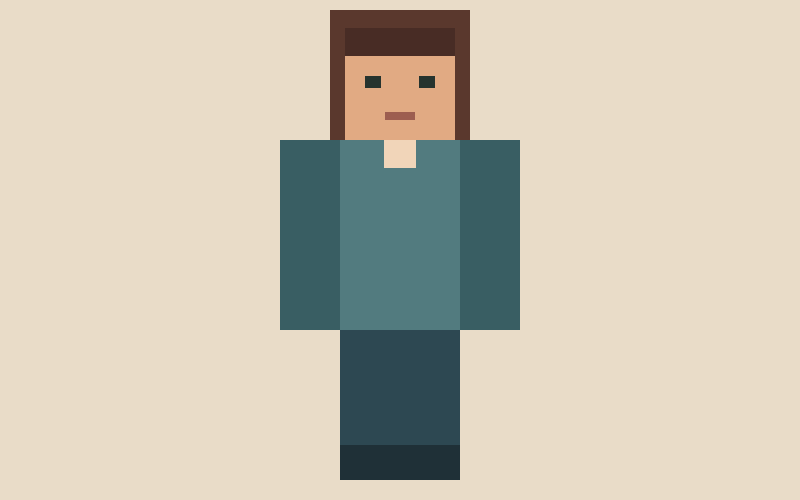
Source picture

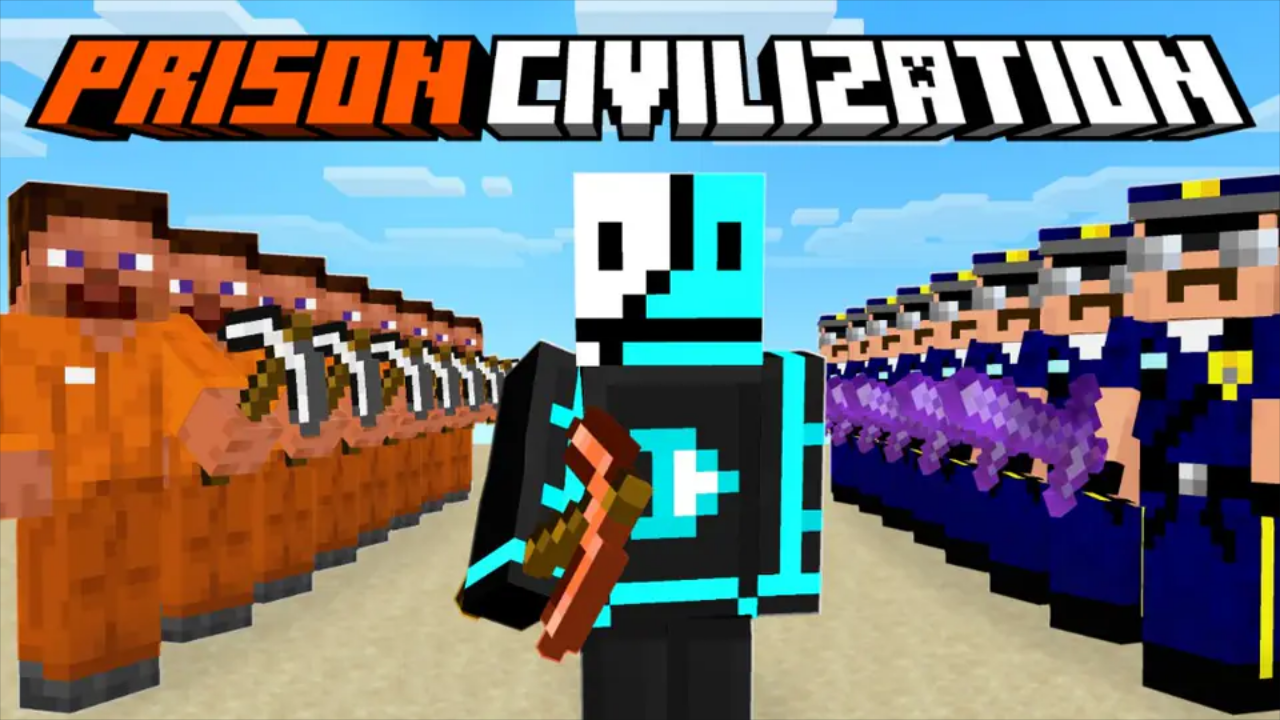
Flat character artwork with a teal outfit on a beige background

Place a simple character illustration over the body guide. Keep its face and outfit centered, then compare how the flat colors wrap around the model.

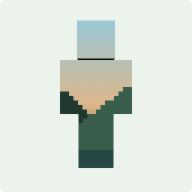
Mapped character skin

Mapped player skin with a teal outfit and a square illustrated face

How image to Minecraft skin conversion works

Convert your image

Position the source picture

Upload a photo or artwork and move it under the body guide. Adjust the image to Minecraft skin scale to place recognizable details.

Convert and inspect the mapping

Choose Classic or Slim arms and a skin resolution, then convert. Check the image to Minecraft skin result in both character and texture views.

Refine the face and download

Paint face pixels or apply a preset, inspect the character from several angles and download the edited texture as PNG.

Photo to Minecraft skin with a visible mapping

Source picture positioned under the Minecraft body guide

Position the picture on your character

Move and scale the source under the body guide. The image to Minecraft skin tool uses that placement for the front, then continues edge colors and mirrored detail around the model. Center the pattern you want players to recognize.

Position your picture
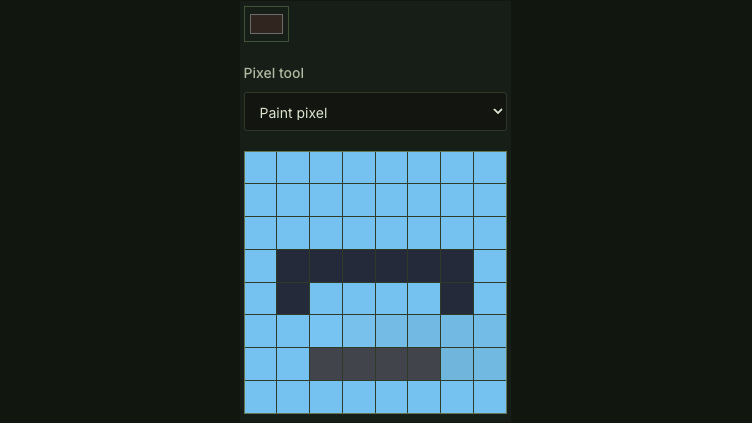
Complete eight by eight face pixel grid with brush color and pixel tool

Give the face a readable expression

Open the face editor after conversion to paint pixels, pick a color or try a preset. The image to Minecraft skin preview shows those changes on the model, helping you turn a busy image detail into a more recognizable face.

Refine the face

Keep control from picture to playable texture

Choose which colors and shapes to keep when creating a Minecraft skin from photo material. The image to Minecraft skin workspace separates source positioning, wrapped-texture preview and face editing so you can refine each part.

Use colors you already like

Bring a photo, illustration or landscape into the image to Minecraft skin tool, then position its strongest shapes where the character will display them.

Inspect more than the front

Rotate the image to Minecraft skin preview and check the texture view, so the arms, sides and back are part of your decision before download.

Landscape colors wrapped around a Minecraft player skin

Keep accepted edits while experimenting

Source changes wait for explicit conversion. The image to Minecraft skin tool keeps the accepted texture while you consider a new position or resolution.

Choose a compatible skin size

Export a standard 64-pixel image to Minecraft skin result, or choose 128 pixels when your destination client supports a higher-resolution character texture.

Image to Minecraft skin questions

mcmaker logo

Start your image to Minecraft skin project

Choose a picture with a pattern you like, place it on the character and refine a skin you can download and keep.

Convert your image