Skip to tool

Create schematic files from editable Minecraft builds

Create schematic files you can inspect before importing into your world. Start with an empty canvas or an existing Java structure, edit the blocks in layers and 3D, then download the current design in the format your building tool needs.

Loading your tools…
MAKE A SCHEMATIC01
0 / 2,000
Build size
Maximum blocks on each axis
START WITH A BLUEPRINT
Cost1 credit
Local draft
EMPTY CANVAS
24 × 24 blocks

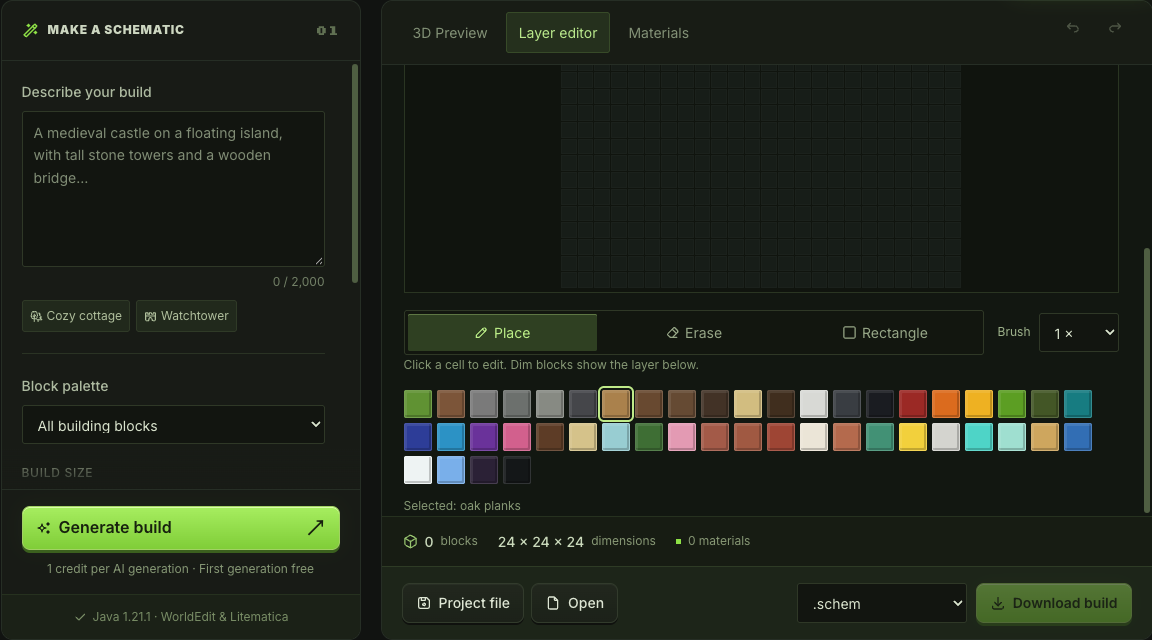
Click a cell to edit. Dim blocks show the layer below.

Selected: oak planks
0blocks24 × 24 × 24dimensions0 materials
01Describe or start with a template02Inspect and edit every layer03Download and build in your world

Create schematic designs with a visible result

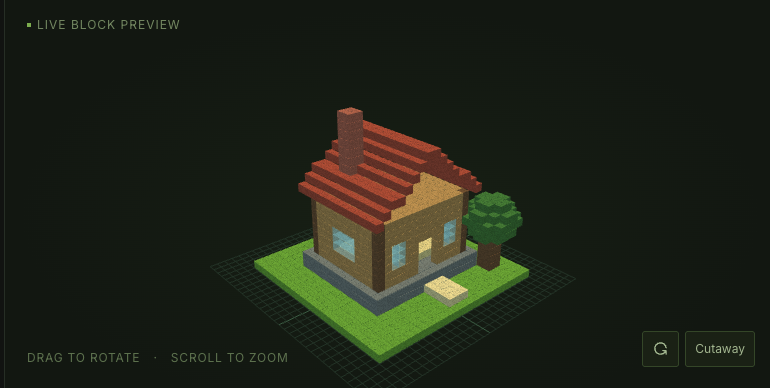
Connect the blocks you place with the structure you export. Create schematic layouts a layer at a time, then inspect the full shape to check openings, rooflines and the footprint before downloading.

Block layout

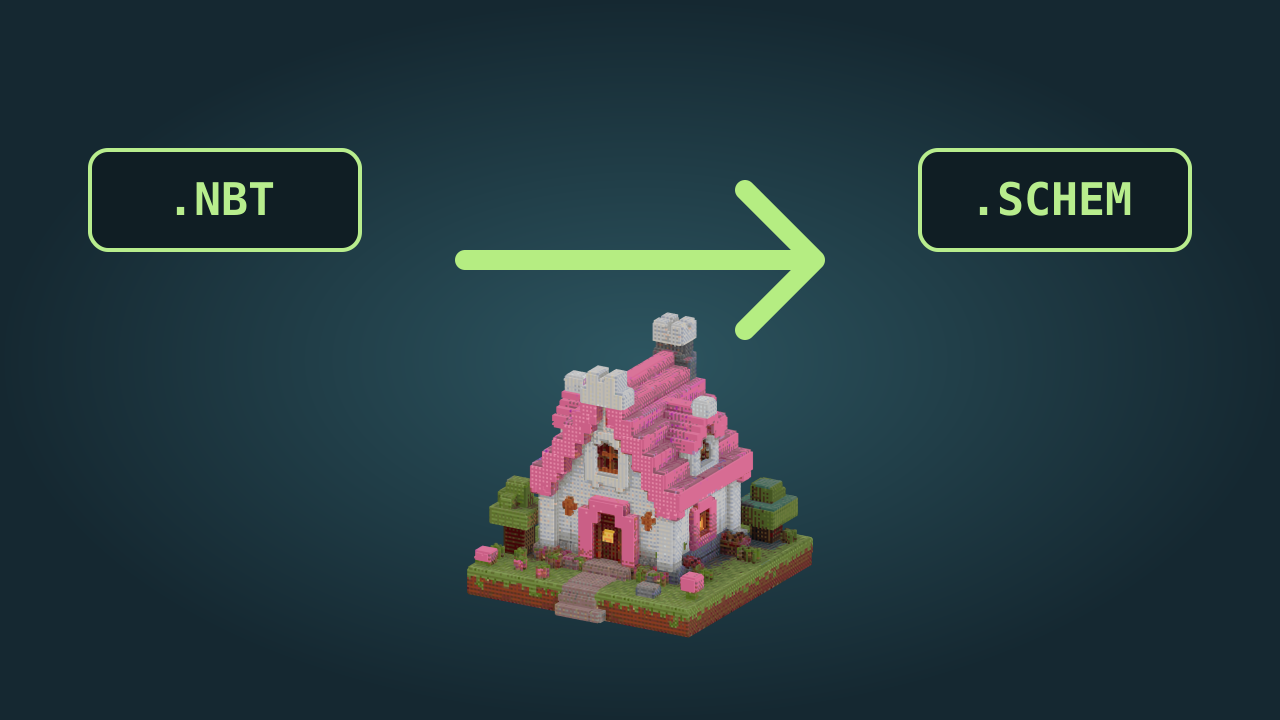
Import woodland-cottage.nbt, review the blocks, and choose .schem for WorldEdit.
Create a schematic

Structure preview

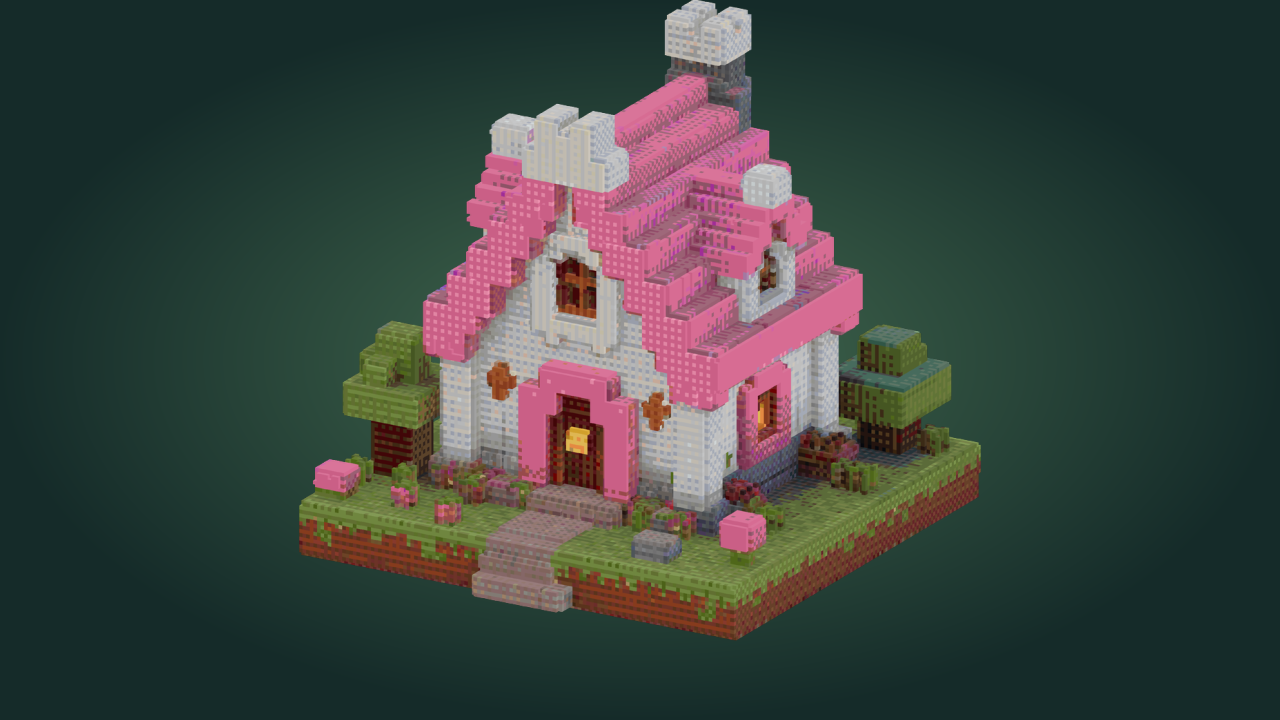
3D view of a 24 by 24 by 24 woodland cottage

How to create schematic files

Create a schematic

Open a blank or existing design

Create schematic files from an empty canvas, or import a supported Java .nbt or Sponge .schem structure to refine an existing building.

Shape the structure by layer

Choose a material, edit the selected height and switch to 3D when you need to check the shape from another angle.

Export the version you have edited

Review dimensions and materials, select the destination format, then create schematic output from the current blocks rather than the original imported file.

Minecraft schematic maker for block editing

Empty schematic layer grid with block editing tools and a material palette

Create schematic floors and walls

Use block placement, erasing and rectangle fills to turn a footprint into a structure. The Minecraft schematic maker shows the lower layer faintly for alignment, so you can create schematic walls and floors while checking how each level fits.

Edit the structure
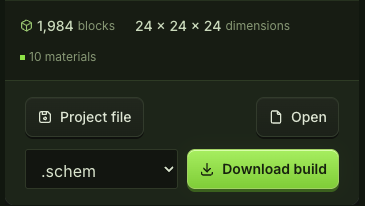
Schematic export controls showing supported Java file format choices

Keep the structure and the export connected

Refine an imported structure, then inspect its updated material totals. Your edits feed the downloaded file directly. Keep a project file alongside the export when you want to compare variations without rebuilding the original design.

Choose an export

Create schematic files with fewer unknowns

A useful schematic is more than a file extension. See what is inside the structure, adjust the blocks and choose the destination before you export it for a world.

Build from an empty canvas

Create schematic structures from your own footprint when an existing template is too restrictive. Start with a few blocks and develop the form deliberately.

Improve an imported building

Open a supported structure and change its blocks in the Minecraft building tool. Create schematic revisions without treating the imported design as a finished result.

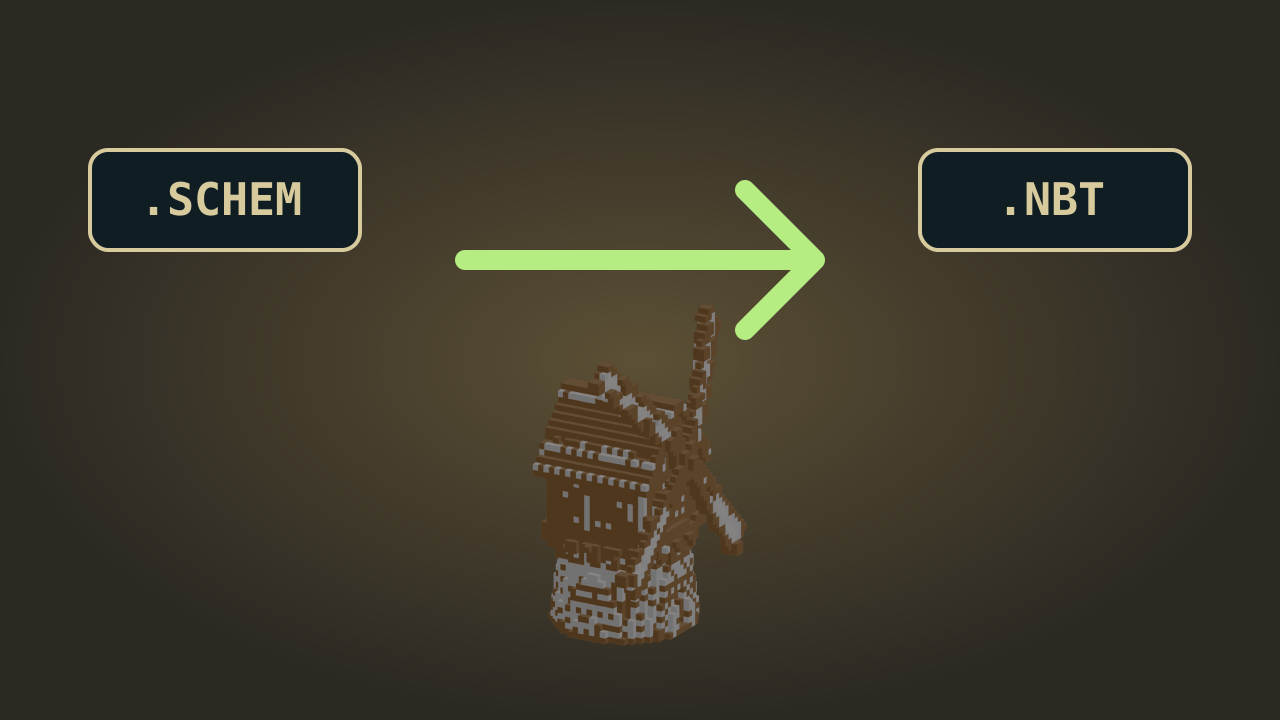
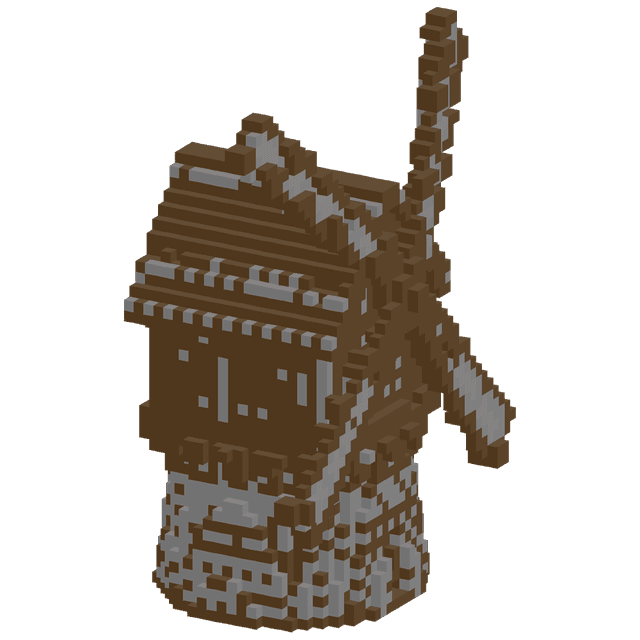
Wooden windmill with broad blades on a stone base

See the block quantities

Check the material list before you create schematic output. The counts reflect your current structure, helping you prepare supplies or compare alternative material choices.

Save a version for later

Download the editable project or save it to your account. Reopen the design when you want to create schematic changes after another building session.

Schematic file questions

mcmaker logo

Create schematic files from your next idea

Open an empty canvas or refine a compatible structure, then export the blocks you have shaped into a usable Java build file.

Create a schematic